
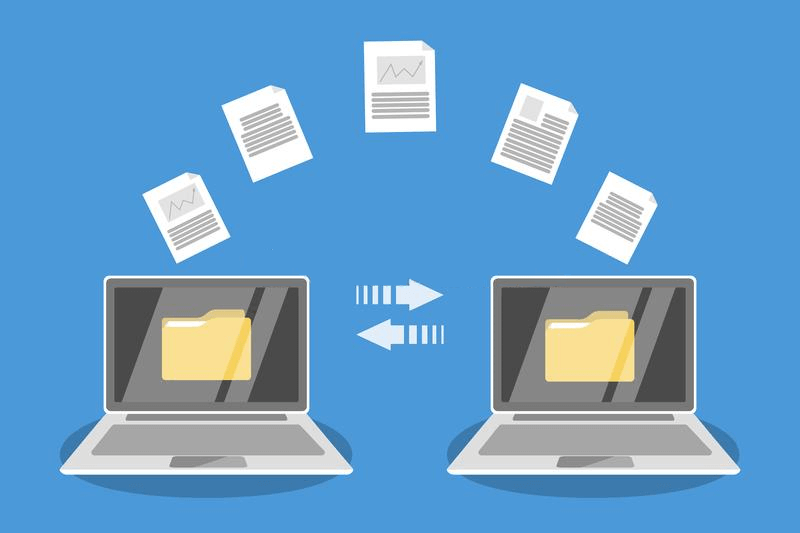
Accessing your data from a distance is now essential for every professional. Whether you need to grab a critical document from home or move large files between office workstations, remote PC file transfer is the ultimate solution.
While many tools exist, finding one that is fast, secure, and easy to use can be a challenge. AnyViewer solves this, offering a professional way to perform a remote desktop file transfer across the globe with ease.
Why AnyViewer stands out for remote desktop file transfer
AnyViewer has rapidly become a favorite for both individual users and enterprises. Here is why it is considered a premier network file transfer software solution for remote data management:
1. Lightning-fast transfer speeds
AnyViewer is engineered with a high-performance protocol optimized for rapid data transmission. Unlike many competitors that throttle bandwidth for free users or suffer from high latency, AnyViewer provides a robust, stable connection tailored for heavy workloads.
- High-Volume Handling: Effortlessly manage large folders, high-resolution videos, and complex software installers without the frustration.
- Optimized Bandwidth: Even on standard internet connections, AnyViewer’s intelligent compression technology ensures that your remote desktop file transfer is completed in seconds rather than minutes.
2. Drag-and-drop simplicity
The user experience is the core of AnyViewer’s design. It eliminates the technical learning curve by providing an interface that feels as natural as managing files on your local hard drive.
- Dual-Pane File Manager: Use a dedicated “File Transfer” window to view the file systems of both local and remote computers side-by-side for easy navigation.
- Intuitive Interaction: Move data by simply selecting a file and clicking the transfer arrow, or use the seamless drag-and-drop feature directly within a live remote session. This eliminates the need for middleman services like email or cloud storage.
3. True cross-platform versatility
Modern workflows often involve multiple operating systems. AnyViewer simplifies remote desktop file transfer by offering seamless compatibility across different devices:
- Windows and Mac: Effortlessly move files between Windows PCs and MacBooks, even across different networks, making remote desktop file transfer Windows 11 and Mac feel like a native system task.
- Mobile and PC/Mac: Transfer data between your iOS/Android devices and your computers (Windows or macOS). This allows you to browse desktop folders and download documents directly to your phone while on the go.
By supporting Windows, macOS, iOS, and Android, AnyViewer acts as a universal hub, ensuring you can access and move your data regardless of the device you are using.
4. Security you can trust
When performing a remote PC file transfer over the internet, security is non-negotiable. AnyViewer employs enterprise-grade protection to ensure your information remains confidential from start to finish.
- End-to-End Encryption: All sessions are secured by Elliptic Curve Cryptography (ECC). This is the same high-level encryption standard used by global banking institutions to prevent data interception.
- Privacy-First Features: Beyond encryption, AnyViewer includes safety measures like Black Screen mode (to hide your activities from onlookers) and multi-factor authentication, ensuring that your remote desktop file transfer is protected against unauthorized access.
5. Efficient unattended access
One of the most powerful features of AnyViewer is the ability to manage files without requiring a person to be present at the remote computer. This is ideal for IT support and remote workers who need 24/7 availability.
- One-Click Connection: By setting up a fixed security code or assigning devices to your account, you can initiate a remote desktop file transfer to your office computer at any time, even in the middle of the night.
- Remote Power Management: As long as the remote machine is powered on, you can log in, grab the documents you need, and even restart or shut down the computer remotely once the transfer is complete, maximizing both productivity and energy efficiency.
How to perform a remote desktop file transfer with AnyViewer
Getting started with AnyViewer is straightforward. Follow these steps to move your first file:
Step 1: Download and install AnyViewer on both the computer you are using (local) and the computer you want to access (remote).
Step 2: Sign up for a free or pro account. Logging in on both devices automatically assigns them to your account, making future connections much faster.
Step 3: You have two primary ways to move files:
- Direct Transfer: From the device list, select the remote computer and click the “File Transfer” without even starting a full screen-control session.
- In-Session: If you want to control the remote computer and transfer files at the same time, select “One-click control” to connect first. During the remote session, click the “Files” button in the top menu bar to open the file transfer manager.
Step 4: Use the dual-pane interface to navigate your folders. Select the items you need, choose the destination path, and click the transfer arrow.
Conclusion
In a world where data is the most valuable currency, having a reliable method for remote desktop file transfer is essential. AnyViewer provides a perfect blend of speed, security, and user-friendliness that caters to both casual users and IT professionals. By removing the barriers to your data, AnyViewer ensures that your files are always right where you need them, no matter where you are in the world.